🔄 WordをExcelに変換!表データを移行する方法

Microsoft WordとExcelは、ビジネスや個人の作業に広く使われているオフィススイートの代表格です。Wordは文章作成に、Excelは表計算やデータ分析に優れています。しかし、ある時点で、Wordで作成した表データをExcelに移行したいケースが出てくるでしょう。この記事では、Wordの表データをExcelに変換する方法を詳しく解説します。手順を追って操作することで、スムーズにデータの移行ができるようになります。さらに、いくつかの便利なヒントも紹介しますので、ぜひ最後までお読みください。
🔄 WordをExcelに変換!表データを移行する方法
Wordの表データをExcelに移行する方法について説明します。Wordで作成した表データをExcelで編集したい場合や、データの分析や計算を行いたい場合に、この方法が便利です。以下の手順でWordの表データをExcelに変換できます。
方法1: コピー&ペーストで表データを移行する
最も簡単な方法は、コピー&ペーストを使用して表データを移行することです。
- Wordで表データが含まれるドキュメントを開く
- 表全体を選択し、コピーする
- Excelを開き、任意のセルを選択する
- セルに表データをペーストする
方法2: テキストファイルを介して移行する
Wordの表データをテキストファイルに変換し、Excelでインポートする方法もあります。
- Wordで表データが含まれるドキュメントを開く
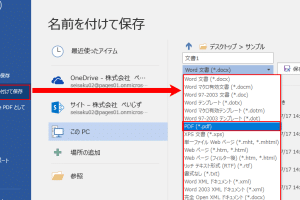
- 「ファイル」→「名前を付けて保存」を選択
- ファイルの種類を「プレーンテキスト」に変更し、保存する
- Excelを開き、「データ」タブの「テキストから」を選択
- 先ほど保存したテキストファイルを選択し、インポートする
方法3: 「移動またはコピー」機能を使用する
WordとExcelの両方がオープンしている状態で、「移動またはコピー」機能を使用して表データを移行できます。
- Wordで表データが含まれるドキュメントを開く
- Excelを開き、表データを移行したいセルを選択する
- Wordに戻り、表を右クリックして「移動またはコピー」を選択
- 「別のドキュメントにコピー」を選択し、Excelのブックを指定する
方法4: VBAマを使用して移行する
VBAマを使用して、Wordの表データをExcelに自動的に移行する方法もあります。ただし、この方法はVBAの知識が必要です。
- ExcelでVBAエディタを開く(Alt+F11)
- 新しいモジュールを作成し、VBAコードを入力する
- コードを実行して、Wordの表データをExcelに移行する
方法5: サードパーティ製の変換ツールを使用する
Wordの表データをExcelに変換する専用の変換ツールを使用する方法もあります。有料・無料を含め、さまざまなツールが存在します。
- 変換ツールをダウンロード・インストールする
- Wordの表データが含まれるドキュメントを開く
- 変換ツールの機能を使用して、表データをExcelに変換する
| 方法 | 手順 | 注意点 |
|---|---|---|
| コピー&ペースト | Wordで表をコピーし、Excelにペースト | 簡単だが、フォーマットが変わることがある |
| テキストファイルを介して | Wordをプレーンテキストで保存し、Excelでインポート | 手順が複数あり、少し手間がかかる |
| 「移動またはコピー」を使用 | WordとExcel両方を開き、「移動またはコピー」機能で移行 | 一度に複数の表を移行できる |
| VBAマを使用 | ExcelのVBAエディタでマを作成し、実行して移行 | VBAの知識が必要 |
| 変換ツールを使用 | 専用の変換ツールを使用して表データを変換 | 有料のツールを使用する場合、費用がかかる |
Wordの表をExcelに変換するにはどうすればいいですか?
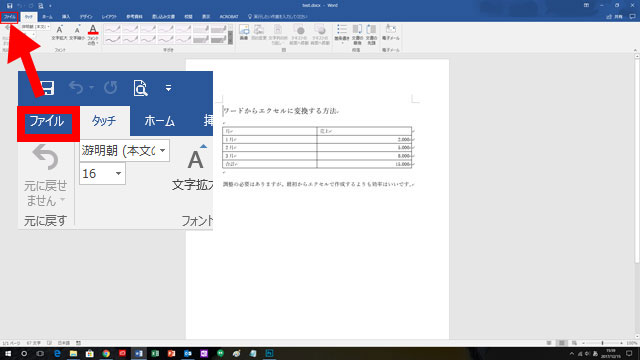
Wordの表をExcelに変換するには、以下の手順を実行します。
表を選択してコピーする
Word文書内の表をExcelに変換するには、まず該当する表を選択し、コピーします。以下の手順で行ってください。
- Word文書を開き、変換したい表を探してクリックしてください。
- 表の周囲に表示されるように、表の外側の線をクリックして表全体を選択します。
- 「ホーム」タブにある「コピー」ボタンをクリックするか、Ctrl+Cを押して表をコピーします。
Excelに表を貼り付ける
次に、コピーした表をExcelシートに貼り付けます。以下の手順で行ってください。
- Excelを開いて、新しいワークシートを作成するか、既存のワークシートを開きます。
- 表を貼り付けるセルをクリックして選択します。
- 「ホーム」タブにある「貼り付け」ボタンをクリックするか、Ctrl+Vを押して表を貼り付けます。
貼り付けた表を調整する
貼り付けた表を必要に応じて調整します。以下の手順で行ってください。
- 表の列幅や行の高さを調整して、すべてのデータが表示されるようにします。
- 必要に応じて、表の書式設定を変更します。例えば、ヘッダー行の背景色を変更したり、罫線を追加・削除したりします。
- 数式や関数を使用して、表内のデータを計算または分析します。
ワードからエクセルに変換するにはどうすればいいですか?
ワードからエクセルに変換するには、以下の手順を実行します。
方法1: ワードの表をエクセルに貼り付ける
ワード内の表データをエクセルにコピー&ペーストする方法が最も簡単です。
🖼️ WordをJPEGで保存する方法!画像変換のメリットとデメリット- ワードで、変換したい表をForge majeure in Section 15.1(h), Insurance–Commercial General Liability, Commercial Automobile Liability, Workers’ Compensation and Employer’s Liability, Excess and Umbrella Liability and any other insurance policies required by the Contract Documents or by law, each with limits and endorsements reasonably required by the Owner. The Contractor shall maintain all insurance coverage required by the Contract Documents or by law until the later of Substantial Completion or final payment.
The Contractor shall provide certificates of insurance to the Owner upon request, evidencing the required coverages and naming the Owner as an additional insured. The Contractor shall also provide the Owner with written notice at least thirty (30) days prior to the cancellation or material change of any insurance policy.
The Owner may require the Contractor to furnish performance and payment bonds, in a form and issued by a surety company acceptable to the Owner, covering the faithful performance of the Work and the payment of all obligations arising thereunder. The cost of the bonds shall be included in the Contract Sum.
The Contractor shall indemnify and hold harmless the Owner, its agents and employees, from and against all claims, damages, losses and expenses, including but not limited to attorneys’ fees, arising out of or resulting from the performance of the Work, provided that such claim, damage, loss or expense is attributable to bodily injury, sickness, disease or death, or to injury to or destruction of tangible property (other than the Work itself), but only to the extent caused by the negligent acts or omissions of the Contractor, its subcontractors, or their respective agents or employees.
The Contractor shall require similar indemnification provisions in all subcontracts and sub-subcontracts relating to the Work.
The Contractor’s liability insurance shall be primary and non-contributory with any insurance maintained by the Owner.
The Owner shall purchase and maintain property insurance upon the Work at the site to the full insurable value thereof. This insurance shall include the interests of the Owner, the Contractor, and their respective subcontractors and sub-subcontractors. The Owner shall also purchase and maintain such insurance as may be required by law, including but not limited to workers’ compensation insurance.
The Owner and Contractor waive all rights against each other and against their respective agents, employees, subcontractors and sub-subcontractors for damages caused by fire or other perils to the extent covered by the property insurance obtained pursuant to this Article, except such rights as they may have to the proceeds of such insurance.
The Owner and Contractor shall each maintain insurance for its own property, other than the Work, and for its own personnel, except to the extent that insurance is specifically required to be provided by the other Party under this Article.
The Contractor shall promptly notify the Owner in writing of any damage to or loss of the Work or any part thereof.
The Contractor shall be responsible for the cost of all deductibles under the property insurance maintained by the Owner.
The Contractor shall submit to the Owner, prior to the commencement of the Work, a schedule of values allocating the entire Contract Sum among the various portions of the Work. The schedule of values shall be used as the basis for reviewing the Contractor’s applications for payment.
The Contractor shall submit to the Owner, at least ten (10) days before each progress payment is due, an application for payment setting forth the portion of the Contract Sum that the Contractor believes it is entitled to be paid, based on the schedule of values and the progress of the Work.
The application for payment shall be accompanied by such supporting documentation as the Owner may reasonably require, including but not limited to copies of invoices, receipts, and payroll records.
The Owner shall, within seven (7) days after receipt of the application for payment, either approve and pay the amount requested, or notify the Contractor in writing of the reasons for disapproving all or part of the application. The Owner may withhold payment of any portion of the application that is in dispute.
The Owner’s payment of any application for payment shall not constitute acceptance of the Work or any part thereof, nor shall it be construed as a waiver of any rights or remedies the Owner may have under the Contract Documents.
Upon Substantial Completion of the Work, the Contractor shall submit to the Owner a final application for payment, setting forth the total amount of the Contract Sum that the Contractor believes it is entitled to be paid, less any amounts previously paid.
The Owner shall, within thirty (30) days after receipt of the final application for payment, either approve and pay the amount requested, or notify the Contractor in writing of the reasons for disapproving all or part of the application. The Owner may withhold payment of any portion of the final application that is in dispute.
Final payment shall be conditioned upon the Contractor’s submission of satisfactory evidence that all labor, materials, equipment, and services have been paid for, and that no liens or claims have been filed against the Owner or the Property.
The Owner may require the Contractor to submit, prior to final payment, a lien waiver and release from each subcontractor and supplier, in a form acceptable to the Owner.
The Owner’s final payment shall constitute a waiver of all claims by the Owner against the Contractor, except for those arising from the Contractor’s failure to comply with the requirements of the Contract Documents and those that the Owner could not reasonably have discovered prior to final payment.
In the event of a dispute between the Parties, the Parties shall endeavor to resolve the dispute through good faith negotiations. If the Parties are unable to resolve the dispute through negotiations, the dispute shall be submitted to mediation in accordance with the rules of the American Arbitration Association. If the dispute is not resolved through mediation, the Parties may submit the dispute to arbitration or litigation in accordance with the requirements of the Contract Documents and applicable law.
The prevailing Party in any arbitration or litigation shall be entitled to recover its reasonable attorneys’ fees and costs from the other Party.
The Contract Documents shall be governed by and interpreted in accordance with the laws of the state in which the Property is located.
The Contractor’s services under this Agreement shall commence on the date first written above and shall continue until the earlier of the completion of the Work or the termination of this Agreement.
Either Party may terminate this Agreement upon written notice to the other Party in the event of a material breach by the other Party, provided that the breaching Party fails to cure the breach within thirty (30) days after receipt of written notice thereof.
Upon termination of this Agreement, the Contractor shall be entitled to payment for all Work performed and costs incurred prior to the effective date of termination, less any amounts previously paid. The Owner shall have no liability for any loss of anticipated profits or other consequential damages.
This Agreement constitutes the entire agreement between the Parties with respect to the subject matter hereof, and supersedes all prior negotiations, representations, warranties, promises, or agreements, whether written or oral, with respect thereto. No amendment, modification, or waiver of any provision of this Agreement shall be effective unless in writing and signed by both Parties.
This Agreement shall be binding upon and inure to the benefit of the Parties and their respective successors and assigns. The Contractor may not assign this Agreement without the prior written consent of the Owner, which consent shall not be unreasonably withheld.
All notices, requests, demands, or other communications under this Agreement shall be in writing and shall be deemed to have been duly given if delivered personally or sent by certified mail, return receipt requested, to the respective addresses set forth in the Agreement.
If any provision of this Agreement is held invalid, illegal, or unenforceable, the validity, legality, and enforceability of the remaining provisions shall not be affected or impaired thereby.
The headings used in this Agreement are for reference purposes only and shall not be deemed a part of this Agreement.
This Agreement may be executed in counterparts, each of which shall be deemed an original, but all of which together shall constitute one and the same instrument.
IN WITNESS WHEREOF, the Parties have executed this Agreement as of the date first written above.
OWNER:
[Name of Owner]
By: ____________________
Name:CONTRACTOR:
[Name of Contractor]
By: ____________________
Name:ExcelにWordを埋め込む方法は?
ExcelにWordを埋め込む方法は、以下の手順で行います。
方法1: オブジェクトとしてWord文書を埋め込む
- Excelで、Word文書を挿入したいセルを選択します。
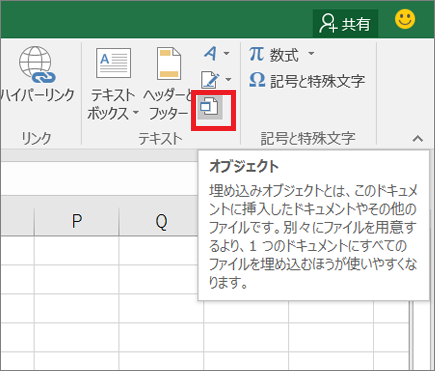
- 挿入タブにあるテキストグループのオブジェクトをクリックします。
- オブジェクトダイアログボックスが表示されます。ここで新規作成タブを選択し、Microsoft Word文書を選択してOKをクリックします。
- Excelシート上にWord文書が埋め込まれます。ダブルクリックするとWord文書を編集できます。
方法2: リンクとしてWord文書を挿入する
- Excelで、Word文書を挿入したいセルを選択します。
- 挿入タブにあるテキストグループのオブジェクトをクリックします。
- オブジェクトダイアログボックスで作成元のファイルタブを選択し、参照をクリックしてWord文書を選択します。
- リンクをチェックし、OKをクリックします。
方法3: Word文書からデータをコピーしてExcelに貼り付ける
- Word文書を開き、Excelに挿入したいデータを選択してコピーします。
- Excelで、データを貼り付けるセルを選択し、貼り付けをクリックします。
- 貼り付けオプションが表示されたら、元の書式を保持を選択します。
ワードの表をエクセルに図として貼り付ける方法は?

ワードの表をエクセルに図として貼り付ける方法は以下の通りです。
まず、ワードで作成した表を選択し、コピーします。その後、エクセルで図を貼り付けたいセルを選択し、貼り付けメニューから画像を選択します。これにより、ワードの表がエクセルに図として貼り付けられます。
ワードの表をコピーする方法
ワードの表をコピーするには、以下の手順を実行します。
- ワードで表を選択する。
- 右クリックしてコピーをクリックする。
エクセルに図として貼り付ける方法
エクセルに図として貼り付けるには、以下の手順を実行します。
- エクセルで図を貼り付けたいセルを選択する。
- ホームタブの貼り付けメニューから画像を選択する。
貼り付けた図の配置を調整する方法
貼り付けた図の配置を調整するには、以下の手順を実行します。
- 貼り付けた図を選択する。
- 図の周りに表示されるハンドルをドラッグして、サイズや位置を調整する。
よくある質問
Wordの表データをExcelに変換する方法は?
Wordの表データをExcelに変換するには、まずWordで表を開き、表を選択してコピーします。次に、Excelを開き、セルを選択して貼り付けます。貼り付ける際、「ソースの形式を保持」または「テキスト」を選択することで、表の形式やデータが保持されます。これで、Wordの表データをExcelで利用できるようになります。
Wordの表データをExcelに変換すると、データが失われることはありますか?
基本的に、Wordの表データをExcelに変換する際は、データが失われることはほとんどありません。しかし、表に複雑な形式や特殊な文字が含まれている場合、変換後にデータが失われることがあります。その場合は、変換前にWordで表をシンプルな形式に変換し、特殊な文字を一般的な文字に置き換えることで、データの損失を防ぐことができます。
Excelに変換した表データを編集するには?
Excelに変換した表データを編集するには、まずExcelで表を開き、編集したいセルを選択します。次に、必要な編集を行い、Enterキーを押すか、他のセルをクリックして確定します。Excelでは、データの並べ替えや計算、フィルタリングなど、多くの編集機能が利用できますので、表データの分析や加工が容易になります。
Wordの表データをExcelに変換した後、元のWordファイルは削除しても大丈夫ですか?
Wordの表データをExcelに変換した後、元のWordファイルが今後必要ない場合は、削除しても問題ありません。ただし、データのバックアップや、将来の参照のために、元のWordファイルを保管しておくことをお勧めします。また、Excelファイルを別の名前で保存し、元のWordファイルとは別の場所に保管することで、データの安全性を確保することができます。